Bartender Overview
Bartender for mac is a menu bar management app by Applause Group that has helped Mac users control their menu bar for more than 10 years. Version 6.6.2, focuses heavily on performance, reducing memory creep during long sessions and fixing a longstanding issue where icons could disappear from the layout page. It lets you hide, rearrange, or group menu bar items, reveal hidden icons with a swipe or hover, and automatically switch presets based on triggers like battery level or time of day. Bartender 6 is redesigned specifically for macOS Tahoe and runs natively on both Apple Silicon and Intel Macs. It's a one-time $24 purchase, with a Pro subscription tier also available.
Why Choose Bartender for Mac
A crowded menu bar is one of the most common small annoyances on Mac, especially once you install a handful of utilities that each claim their own icon. Bartender solves this directly, letting you hide items you rarely need while keeping quick access through a swipe, click, or hover, or stashing them in a dedicated Bartender Bar beneath the main menu bar.
One detail worth knowing if you use a MacBook Air or Pro with a notch: Bartender can automatically hide currently shown menu bar items to make room for icons that would otherwise be hidden behind the notch, effectively expanding how many items actually fit. It's also worth knowing that earlier 6.x versions drew criticism from some long-time users over icons disappearing or shifting position unexpectedly. Version 6.6.2 directly targets that history, with fixes specifically aimed at disappearing icons in the layout page, along with reduced memory, CPU, and battery usage during regular use.
Key Features
- Hide, show, or rearrange menu bar items with a swipe, click, or hover
- Bartender Bar for stashing hidden items in a dedicated secondary bar
- Automatic room-making for items hidden behind the MacBook notch
- Custom styling, including tints, gradients, borders, and rounded bars
- Groups for combining related menu bar items into one customizable icon
- Presets for switching your entire menu bar setup for work, home, or recording
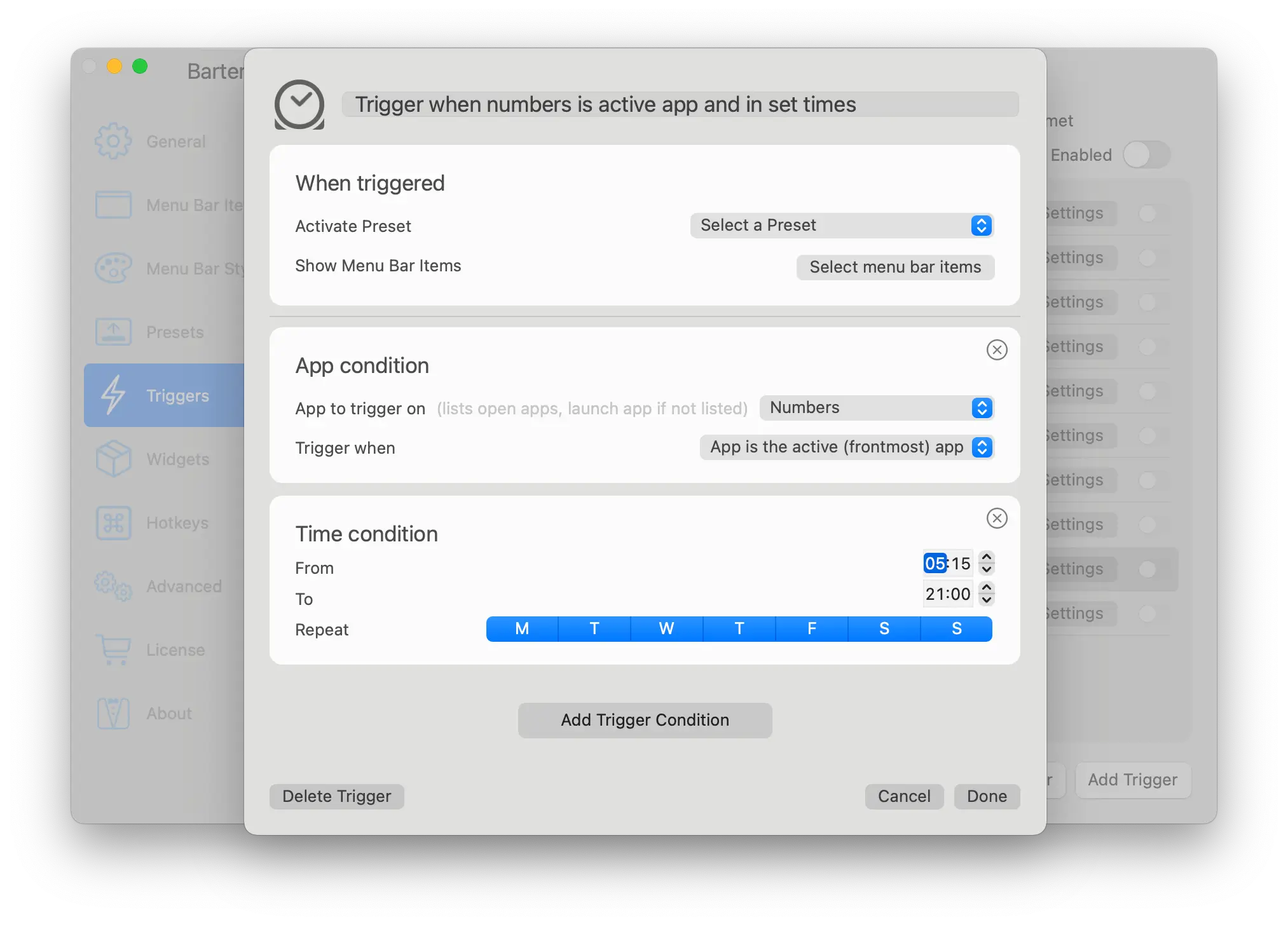
- Triggers that apply presets automatically based on battery, Wi-Fi, location, or time
- Quick Search for finding and activating any menu bar item from the keyboard
- Widgets (beta) for building custom menu bar items without writing code
- Native performance on both Apple Silicon and Intel Macs
What's New in 6.6.2 Version
Bartender 6.6.2 focuses almost entirely on performance and reliability. Recent changes include:
- Memory usage no longer creeps up over longer sessions when Triggers are enabled
- Triggers update more reliably
- Leaving the layout page open no longer keeps memory usage high after editing your bar
- Fixed "disappearing icons" on the layout page when rearranging items or leaving the app open for a while
- Lower CPU usage overall, especially when using Live mode
- Faster menu bar "settling" in Live mode, with fewer operations needed to reorder items correctly
- Reduced battery usage overall, with an optional "lower power usage on battery" setting for further savings
- Fixed an issue where Bartender Bar would show items again after clicking one already in the bar
- This update directly targets the layout and performance issues some long-time users had reported in earlier 6.x versions.
- These updates focus on polish and reliability fixes rather than major new features, following Bartender 6's larger redesign for macOS Tahoe.
Supported macOS Versions
Bartender 6 is built for macOS Tahoe and Sequoia and requires macOS 14.0 or later, running natively on both Apple Silicon and Intel Macs. The current download is 53.8MB. If you need to stay on an older macOS version, your Bartender 6 license also covers Bartender 5, so you're not locked out of using the app on older systems.
How to Install Bartender on macOS?
Setting up Bartender on your Mac takes just a few steps.
- Download the latest version of Bartender for Mac.
- Open the downloaded disk image (.dmg) file.
- Drag the Bartender icon into your Applications folder.
- Launch Bartender from your Applications folder.
- Grant the accessibility permissions macOS requests during setup.
- Once installed, you can start hiding and organizing your menu bar items right away.
How to Use Bartender on mac?
- Open Bartender and follow the setup steps to grant required permissions.
- Drag menu bar items into Bartender's Bar to hide them from the main bar.
- Set up Groups if you want to combine related items into one icon.
- Create Presets for different setups, like work, home, or screen recording.
- Add Triggers if you want presets to switch automatically based on conditions.
- Use Quick Search to find and activate any menu bar item from your keyboard.
Final Verdict
Bartender remains one of the most established menu bar management tools on Mac, with genuinely useful features like notch-avoidance, Presets, and Triggers that go well beyond simple icon hiding. Earlier 6.x versions drew real criticism from some long-time users over layout bugs, but version 6.6.2 specifically targets those complaints with fixes for disappearing icons, memory creep, and overall performance. For anyone dealing with a cluttered menu bar, especially on a notched MacBook, Bartender's latest update makes it an easier recommendation than it was a few versions ago.
Download Bartender for Mac Latest Version
Ready to take control of a cluttered menu bar?
Download Bartender for Mac to hide, group, and organize your menu bar icons, with custom styling, automatic Triggers, and Quick Search built in. Whether you're dealing with a MacBook notch eating into your menu bar space or just want a cleaner look, Bartender gives you detailed control over exactly what shows and when.